
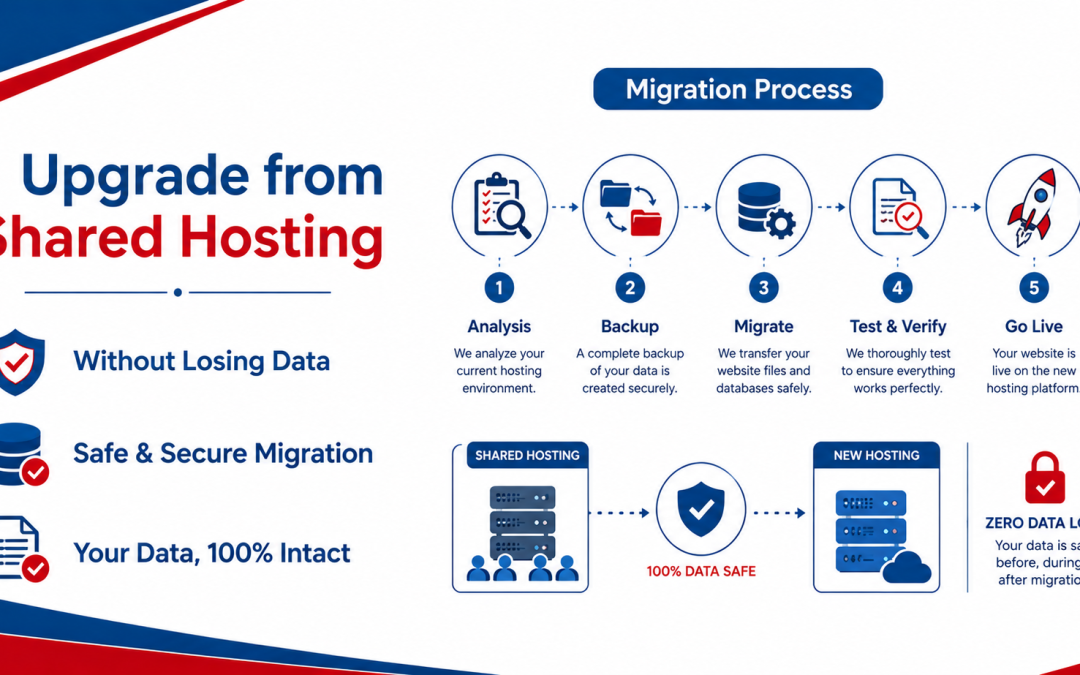
Upgrading from shared hosting is a natural step when your website starts growing in traffic, performance needs, or functionality. While shared hosting is great for beginners, it eventually becomes limiting for websites that need more speed, stability, and resources. However, many website owners hesitate to upgrade because they fear losing data, breaking their website, or experiencing downtime.
The good news is that upgrading from shared hosting can be done smoothly and safely if you follow a structured process. With proper planning, backups, and migration steps, you can move your website to a new hosting environment without losing any files, databases, or SEO value. Here, we explain a step-by-step approach to upgrading from shared hosting while keeping your website fully intact.
Why Upgrading from Shared Hosting Becomes Necessary
Shared hosting works by distributing server resources among multiple websites. While this keeps costs low, it also limits performance and scalability. As your website grows, you may start noticing signs that it is time to upgrade.
Common indicators include:
- Slower page loading speeds
- Frequent resource usage limits
- Increased downtime during traffic spikes
- Difficulty handling multiple plugins or features
- Reduced performance during peak hours
When these issues become consistent, upgrading is no longer optional—it becomes essential for maintaining user experience and business growth.
Choosing the Right Hosting Plan Before Migration
Before moving your website, it is important to select the right hosting plan. The type of hosting you choose depends on your website size and future growth expectations. Typical upgrade options include VPS hosting, cloud hosting, or managed hosting solutions. Each offers better performance and isolation compared to shared hosting. Choosing correctly at this stage prevents repeated migrations in the future. It is always better to plan for scalability rather than upgrading repeatedly in short intervals.
Step-by-Step Data Backup Process
The most critical part of upgrading is securing a complete backup of your website. A backup ensures that even if something goes wrong during migration, your data remains safe.
A complete backup should include:
- Website files (HTML, CSS, images, scripts)
- Databases (MySQL or equivalent)
- Email accounts (if hosted)
- Configuration files
Most hosting providers offer a backup tool in the control panel. Alternatively, you can manually download files using FTP and export databases through phpMyAdmin or similar tools. Always verify that your backup is complete before proceeding to the next step.
Understanding the Migration Process
Website migration involves transferring your website from one server to another. This includes moving files, databases, and configurations while ensuring everything works correctly in the new environment.
A proper migration process ensures:
- No data loss
- Minimal or zero downtime
- Maintained SEO structure
- Preserved website functionality
Some hosting providers offer free migration services, which can simplify the process significantly. However, understanding the manual process is still important for safety and control.
Comparison of Migration Approaches
Different migration methods offer different levels of control, risk, and ease of use. The table below compares the most common approaches:
| Migration Method | Skill Requirement | Risk Level | Downtime Risk | Best For |
| Manual Migration | High | Moderate | Medium | Advanced users |
| Hosting Provider Migration | Low | Low | Very Low | Beginners |
| Migration Plugins (CMS-based) | Low to Medium | Low | Low | WordPress or CMS sites |
| Backup Restore Method | Medium | Low | Medium | Small to medium websites |
This comparison shows that using hosting provider migration or automated tools is generally the safest option for non-technical users.
Transferring Website Files Securely
Once the backup is ready, the next step is transferring your website files to the new hosting environment. This can be done using FTP clients, file managers, or automated migration tools.
During this process, it is important to maintain the same folder structure to avoid broken links or missing assets. Even small errors in file placement can lead to website malfunction. After uploading files, always verify that all directories and assets are correctly placed before proceeding.
Migrating Databases Without Errors
Databases contain essential dynamic content such as posts, user data, orders, and settings. Incorrect database migration can cause serious issues like missing content or broken functionality.
To migrate safely:
- Export database from old hosting using phpMyAdmin
- Import it into the new hosting database system
- Update configuration files with new database credentials
It is important to ensure character encoding and structure remain consistent during the transfer.
Updating Configuration Settings
After moving files and databases, you need to update configuration files so your website connects properly to the new hosting environment.
This usually includes:
- Database name
- Username and password
- Server host details
- File path adjustments
Incorrect configuration is one of the most common reasons websites break after migration. Double-checking these settings ensures smooth functionality.
Testing the Website Before Going Live
Before pointing your domain to the new hosting, it is important to test the website thoroughly. This helps identify errors without affecting your live site.
You should test:
- Page loading speed
- Navigation links
- Contact forms
- Images and media display
- Database-driven features
Many hosting providers offer temporary URLs or staging environments for this purpose. Testing reduces the risk of unexpected downtime after switching.
Updating Domain DNS Settings
Once everything is verified, the final step is updating your domain’s DNS settings to point to the new hosting server. DNS changes may take a few hours to fully propagate across the internet. During this period, some users may still see the old version of your website while others see the new one. To reduce downtime impact, it is recommended to make DNS changes during low-traffic periods.
Ensuring SEO Stability During Migration
One concern during hosting upgrades is SEO impact. Poor migration can lead to broken links, lost rankings, or indexing issues.
To maintain SEO stability:
- Keep URL structure unchanged
- Use 301 redirects if URLs change
- Submit updated sitemap to search engines
- Monitor crawl errors after migration
If done correctly, migration does not negatively affect SEO performance.
Common Mistakes to Avoid During Upgrade
Many website owners face problems during migration due to avoidable mistakes. Some common errors include:
- Skipping full backups
- Not testing before DNS update
- Ignoring database configuration details
- Migrating during high traffic periods
- Forgetting email migration
Avoiding these mistakes significantly reduces the risk of data loss or downtime.
Role of Hosting Support in Safe Migration
A reliable hosting provider plays a major role in ensuring smooth upgrades. Many providers offer free or assisted migration services, especially when moving from shared hosting.
Good support teams help with:
- File transfer
- Database migration
- DNS configuration
- Error troubleshooting
Using professional support reduces technical risk and ensures a smoother transition.
Upgrading from shared hosting does not have to be risky or complicated. With proper planning, complete backups, and careful migration steps, you can move your website without losing any data or experiencing major downtime. The key is to treat migration as a structured process rather than a rushed task.
Choosing the right hosting plan, securing backups, testing thoroughly, and updating DNS carefully all contribute to a successful upgrade. When done correctly, upgrading from shared hosting improves your website’s speed, reliability, and scalability while ensuring your data remains fully safe throughout the process.