
A hacked WordPress website can damage your reputation, expose customer data, redirect visitors to suspicious pages, and disrupt business. Sometimes, the warning signs are obvious, such as unfamiliar admin accounts or malicious redirects. In other cases, your website may appear normal while hidden malware runs in the background.
Learning how to secure a WordPress website requires more than installing a security plugin. You need strong access controls, regular updates, malware detection, reliable backups, and hosting-level protection that works together.
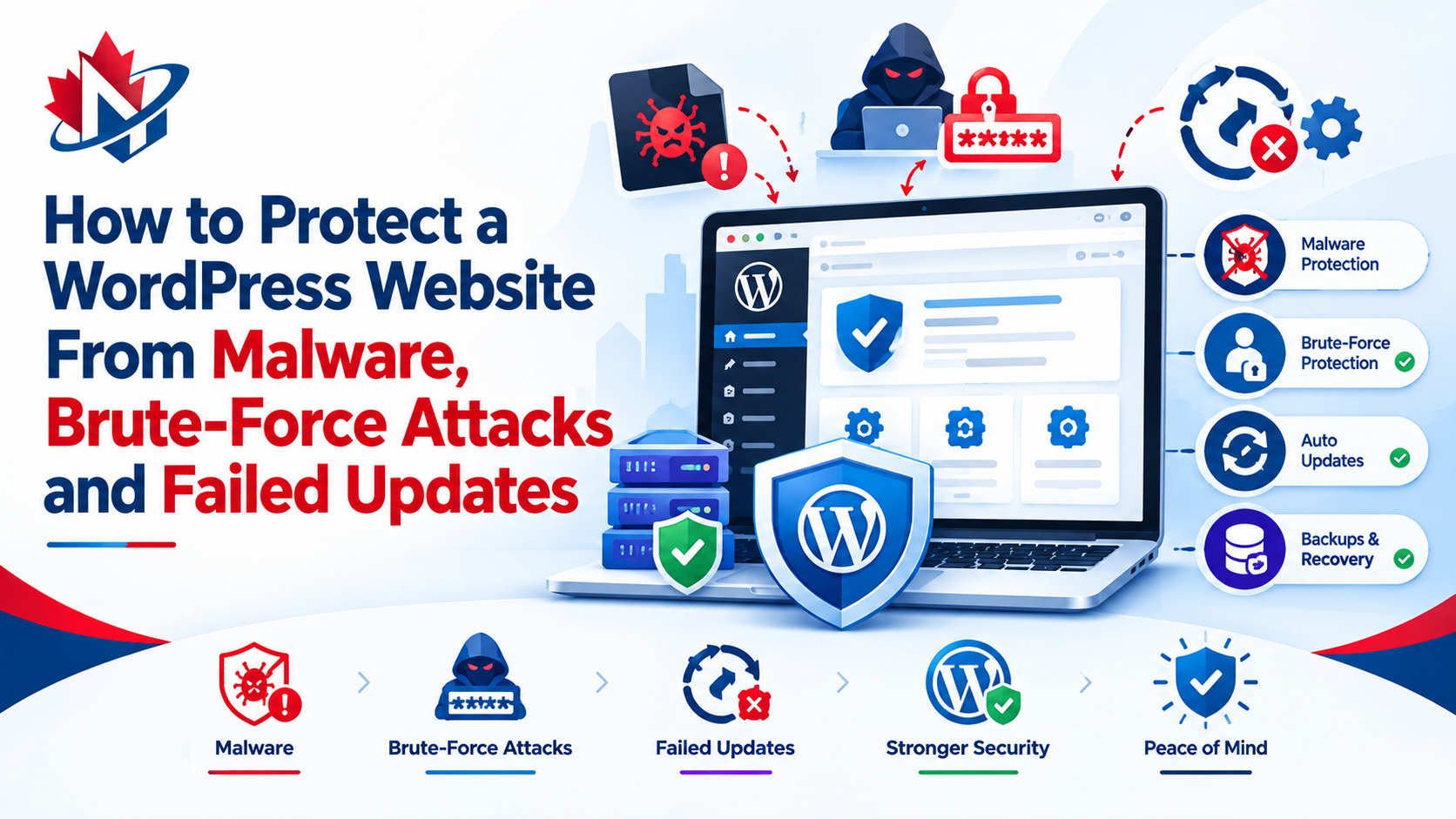
Identify Common WordPress Security Risks
Understanding the warning signs helps you respond before a small issue becomes a serious incident.
- Malware infection: Unknown PHP files, unexpected redirects, spam pages, or suspicious code in website files.
- Brute-force attacks: Repeated failed login attempts, unusual authentication activity, or unexpected administrator accounts.
- Outdated plugins and themes: Security vulnerabilities that attackers may exploit to access your website.
- Failed updates: A broken layout, plugin conflicts, database errors, or a website stuck in maintenance mode.
- Unusual resource usage: Unexpected CPU spikes, slow loading, or unexplained traffic that may indicate malicious activity.
If you suspect a hack, contact your WordPress hosting provider, restrict unauthorized access, preserve relevant logs, and scan the website. Avoid deleting unfamiliar files without checking whether they are legitimate.
Strengthen WordPress Login Security
Brute-force attacks use automated attempts to guess login credentials. A strong password alone is helpful, but multiple security layers provide better protection.
Start with these steps:
- Use unique, randomly generated passwords for every administrator account.
- Enable two-factor authentication (2FA), especially for administrators.
- Limit login attempts and apply rate limiting to suspicious requests.
- Remove unused accounts and assign users only the permissions they need.
- Keep HTTPS enabled to protect credentials during transmission.
The principle of least privilege matters: an author who publishes articles rarely needs administrator access. Reducing unnecessary permissions limits the damage if an account is compromised.
For stronger protection, choose hosting that can block suspicious login traffic before it reaches WordPress. Neurax Host lists brute-force protection and 2FA login protection among the features of its WP Business Shield plan, offering an additional layer beyond ordinary password management.
Detect and Remove WordPress Malware
A security plugin can scan website files, identify suspicious changes, and alert you to known threats. However, detection does not automatically mean every infection has been removed.
Follow this response process:
- Create a backup or forensic copy if it is safe to do so.
- Scan WordPress core files, themes, plugins, and other relevant directories.
- Compare modified files against trusted originals and investigate unfamiliar administrator accounts.
- Remove malicious code or reinstall compromised components from trusted sources.
- Rotate WordPress, hosting, database, and other potentially exposed credentials.
- Scan again and monitor logs to confirm the infection has not returned.
A Web Application Firewall (WAF) serves a different purpose. It filters suspicious HTTP requests and helps block common exploit attempts before they reach your application. Malware scanning looks for signs of infection; a WAF helps prevent certain attacks. Neither replaces the other.
DDoS protection addresses another problem: overwhelming traffic intended to make your website unavailable. It is not a substitute for malware removal or login security.
Prevent Failed WordPress Updates From Breaking Your Website
Updates fix vulnerabilities, but incompatible plugins, insufficient resources, and interrupted processes can cause downtime.
Use this safer update workflow:
- Back up both website files and the database before major changes.
- Update WordPress core, plugins, and themes from trusted sources.
- Check plugin compatibility and review release notes.
- Test significant changes in a staging environment before publishing them.
- Verify the homepage, forms, checkout, login, and essential integrations afterward.
If an update fails, avoid repeatedly clicking Update. Check the error message, PHP compatibility, available storage, file permissions, and server logs. If the site remains in maintenance mode, investigate the cause before removing the maintenance file. Restore a clean backup if necessary.
Automatic updates can reduce the time vulnerable software remains outdated, but they still need monitoring. Neurax Host lists automatic WordPress core updates and safe-mode plugin updates on WP Secure Start, with staging also available. These features can help simplify maintenance, although compatibility checks remain important.
Choose Protection That Matches Your Website’s Risks
Security plugins and managed hosting solve different parts of the problem. The right combination depends on your website’s traffic, business requirements, and recovery needs.
| Your Biggest Concern | Protection to Prioritize | What to Verify Before Choosing |
| Unknown malicious files | Malware scanning and removal | Does the service only detect threats, or also help remove them? |
| Repeated login attacks | Rate limiting, brute-force protection, and 2FA | Are these features included in your selected plan? |
| Exploit attempts and suspicious requests | Web Application Firewall | Does it filter traffic before it reaches WordPress? |
| Traffic floods and downtime | DDoS protection and suitable server resources | What level of protection is included? |
| Updates breaking the website | Staging, tested backups, and safe updates | Can you test changes and restore a working version? |
| A hacked website returning to service | Clean backups and recovery support | How frequently are backups created, and how quickly can they be restored? |
This checklist helps you compare actual protection rather than choosing a provider based only on price or generic security claims.
Build a Backup and Recovery Plan
Backups are your recovery mechanism when prevention fails. Maintain copies of both your WordPress files and database, store at least one copy separately from the live hosting environment, and test restoration periodically.
Backup frequency should match how often your website changes. A frequently updated store may need daily or more frequent backups, while a static portfolio may require less frequent snapshots.
Neurax Host offers different backup arrangements depending on the plan. Its WP Business Shield plan lists daily backups with 30-day retention, while WP Secure Start lists weekly backups. WP Elite Pro adds daily and on-demand backups and instant restore. Confirm the current plan terms and restore process before relying on these features.